Progress & controls
Transfer a Demo save on Steam Deck in Legend of Defenders
Legend of Defenders has a developer-provided manual transfer for a Demo save that still exists on Steam Deck. It copies the complete game-save folder from the Demo’s Proton prefix into the full game’s prefix. It replaces the full-game progress; it does not merge two saves. Back up both versions first. If your newest progress exists only in the PC full game, the Demo-transfer procedure below is the wrong source branch.
On this page
First identify which device has the progress you want
Use this procedure only when the wanted Demo save is still on the Deck. The developer identifies Demo App 4880450 and full-game App 4740930. Match those folders to your actual installation before copying, and stop if you cannot identify the save you want to keep.
The original questioner had a different problem: their Demo had already transferred into the PC full game, but the Deck kept opening a new full-game save. They later reported a different PC-to-Deck file-copy workaround. It is not the same as importing an older Deck Demo. Do not replace newer PC progress with that old Demo merely because both problems mention Steam Cloud.
The November 2 hotfix says it fixed a Steam Deck saving issue. That statement does not prove every later cloud-sync or Demo-transfer problem is resolved.
Close both games and make two separate backups
- Fully exit the Demo and full game. Temporarily turn off Steam Cloud for each product in its Steam properties.
- If the full game has never run, start it with cloud sync off, reach the main menu and fully quit to create its folders.
- On Deck, open Steam → Power → Switch to Desktop. In Dolphin, enable Show Hidden Files.
- Create
Documents/LoD_Save_Backupwith separateDemoandFullfolders. - From each location below, copy the entire Legend of Defenders folder into its corresponding backup. Check that each backup really contains the files before changing the original full-game folder.
Demo parent folder:
/home/deck/.local/share/Steam/steamapps/compatdata/4880450/pfx/drive_c/users/steamuser/AppData/LocalLow/PressStart/
Full-game parent folder:
/home/deck/.local/share/Steam/steamapps/compatdata/4740930/pfx/drive_c/users/steamuser/AppData/LocalLow/PressStart/
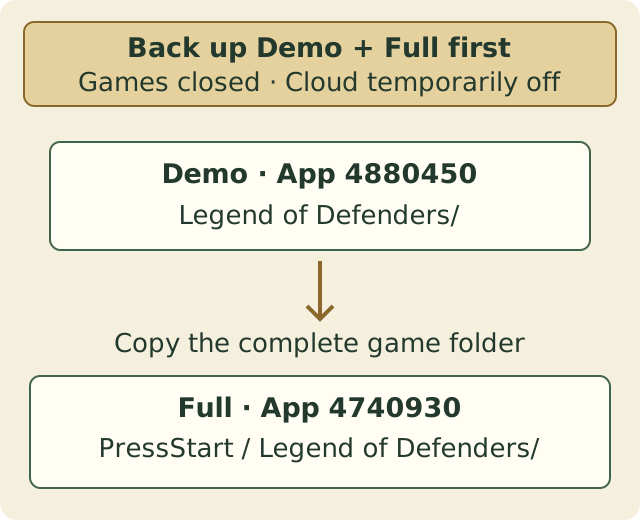
Copy the whole game folder into the full-game parent
- After the Full backup is confirmed, rename the original full-game
Legend of Defendersfolder to an unused backup name, such asLegend of Defenders_before_transfer. - Copy the complete
Legend of Defendersfolder from the Demo location into the full game’s PressStart directory. - Check the resulting location:
.../compatdata/4740930/.../LocalLow/PressStart/Legend of Defenders/. There should not be another same-named game folder nested inside it.
The developer specifies a whole-folder copy, with the games closed. Do not replace PressStart, pfx or the AppID directory, merge selected files from two saves, or delete the backups.
Verify the restored progress before reconnecting Cloud
Return to Gaming Mode and launch the full game. Check the actual progress against the wanted Demo save. Only after that check, save normally, quit, and re-enable the full game’s Steam Cloud. Keep the Demo’s cloud sync off until the full game finishes syncing.
If Steam presents a conflict, the developer says to upload the local save you have just verified. Cancel if you cannot identify which copy is correct; an older cloud save must not replace the restored progress by guesswork. Keep both backups after the transfer.
If the folder or progress does not match
The developer gives /home/deck/.steam/steam/ as an alternative to the initial /home/deck/.local/share/Steam/ prefix. A library installed elsewhere may have its own steamapps/compatdata location. If you still cannot identify the wanted save, stop the replacement and ask in the original support thread.
To return to the previous full-game save, close the game and disable its cloud sync, move the imported game folder elsewhere, and copy the original Full backup into the full game’s PressStart directory. This is a restore of the backed-up folder, not a merge. For the PC-full-game-to-Deck case, preserve both devices’ current saves and ask for the matching route; this page does not validate the player’s live-file copying method.
The transfer is complete only when the full game on Deck shows the intended progress, it has been saved normally, and the correct local copy has finished syncing. Backup existence, a copied folder or Steam’s generic cloud status alone does not prove the right campaign loaded.
Sources & version
Cloud Save Not Working (Steamdeck): complete original question and four delivered replies, including the developer’s full Demo-transfer procedure and the player’s different PC-full-game situation. November 2 Day 1 Hotfix: announced Steam Deck saving fix. Read November 3; no Steam Deck, file transfer, Cloud setting or game installation was operated in this session.